Getting verified
No passwords, no open sign-up — every account is checked against real crew credentials before it can see or message anyone.
- Enter your email — Cross Check sends you a one-time code instead of a password, so there's nothing to forget.
- Enter that code to sign in.
- Submit your airline and employee number so it can be verified against real crew records.
- Once verified, the rest of the app unlocks. No randoms, no recruiters — every other account you'll ever see has been through the same check.
Log your flights
Your flying history, built up trip by trip — and it works with zero bars, because that's usually when you're adding one.
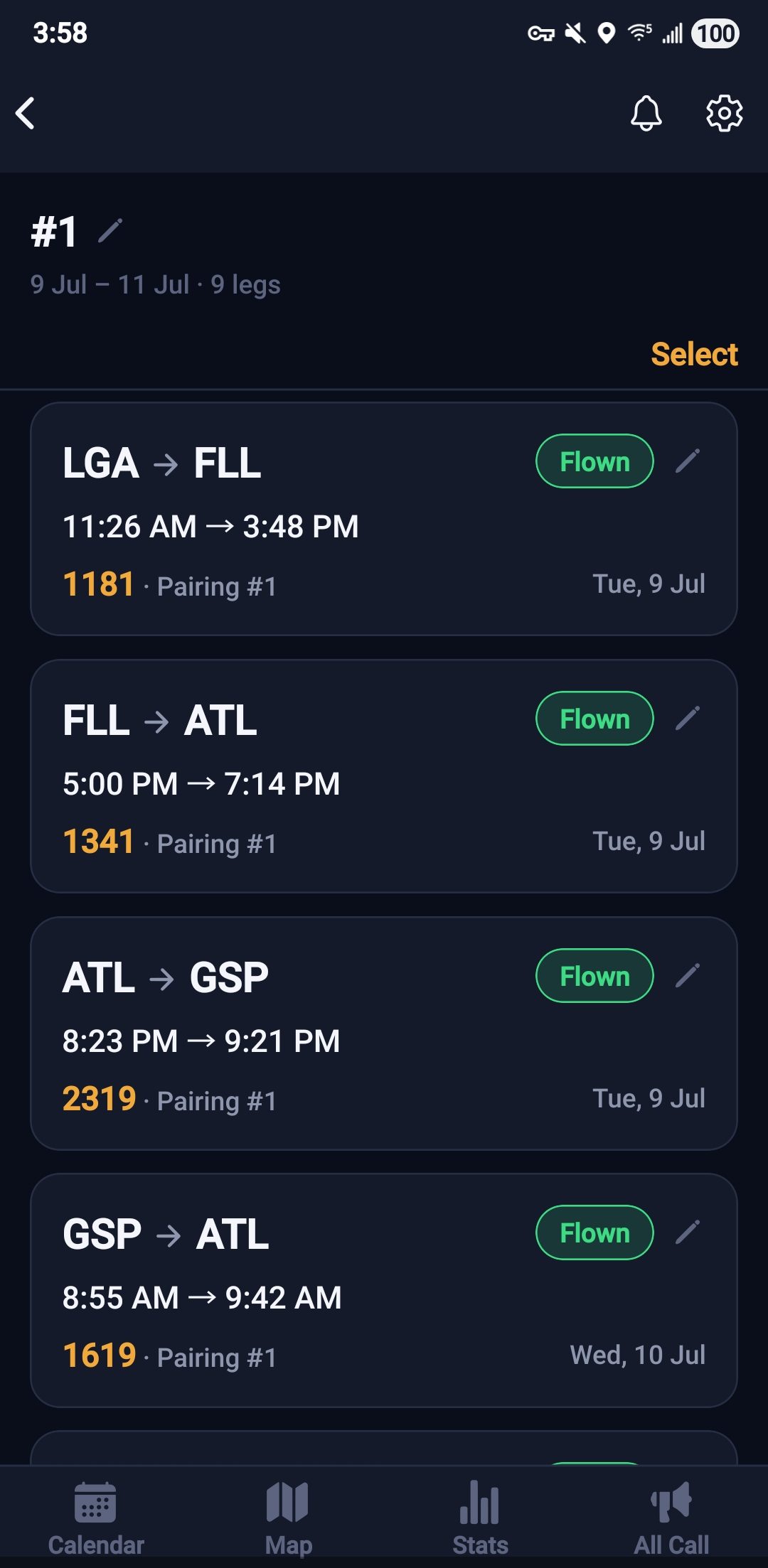
- Open the Add tab.
- Enter your flight number and date, or fill in the details manually.
- Save it — it's on your calendar and in your flight log immediately, even offline. It'll sync the next time you have a signal.
Flight stats
Every flight you log rolls up automatically — no extra step required.
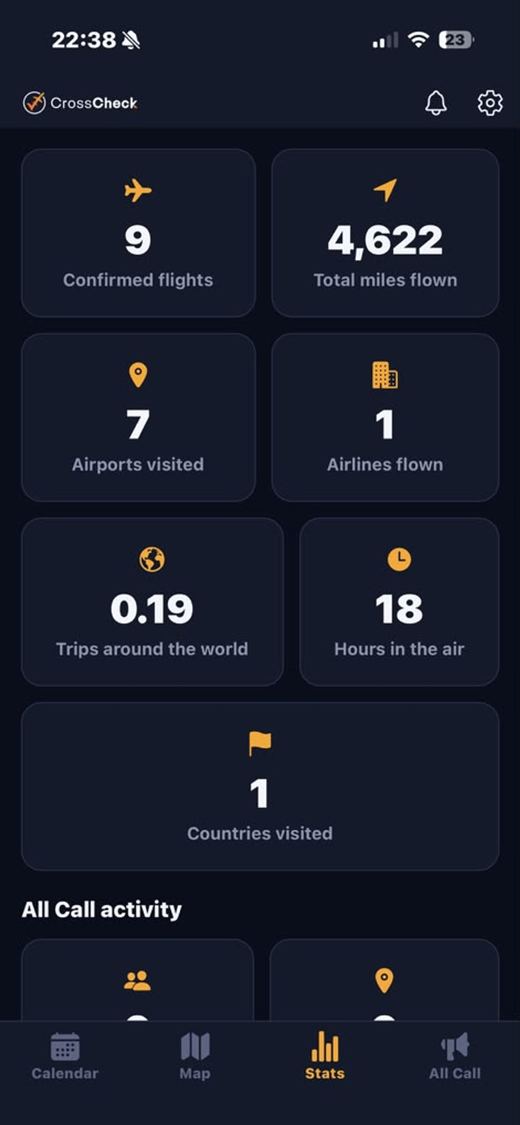
- Open the Stats tab to see total flights, total miles, and total hours flown.
- These update the moment a flight is logged — there's nothing to calculate or refresh yourself.
Home base & home city
Where you're based and where you actually live can be two different cities — Cross Check tracks both instead of forcing one toggle to do both jobs.
- Open Settings → Flying profile.
- Set your home base airport.
- If you commute to work, turn on "I commute" — this reveals a separate home city field, so friends and crew can tell your commuter city apart from where you're actually based.
Who's around & touchdown alerts
This one runs itself — no steps to take beyond keeping notifications on.
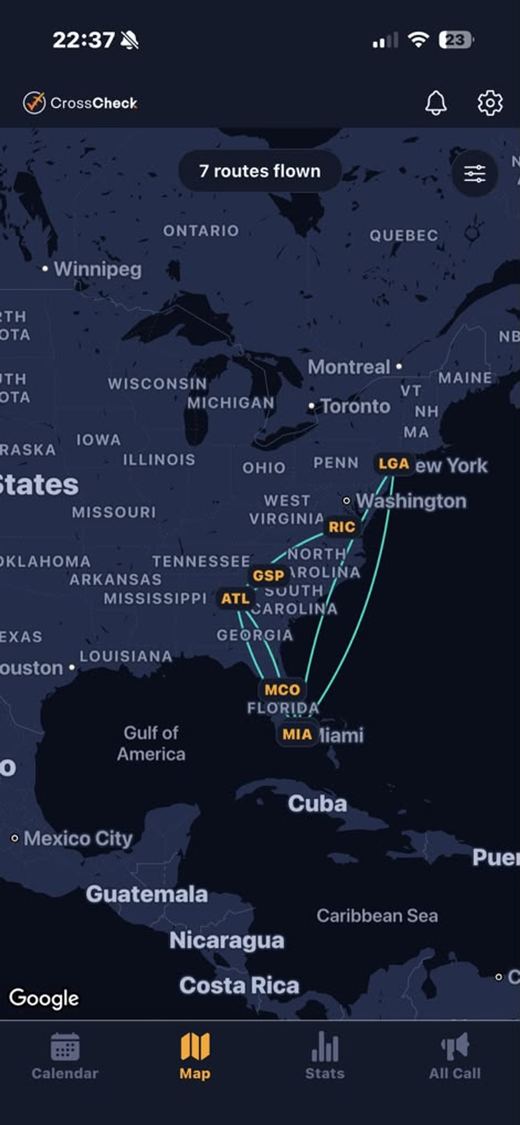
- Once your home base/city and flight schedule are set, Cross Check quietly checks who else — friends, or fellow verified crew — has a real layover in the same city as you.
- Land somewhere with a match and you'll get a touchdown alert the moment wheels stop. No match, no notification — silence means nobody's there.
- Check the Meetups tab any time to see who's around without waiting for a push.
All Call
Post that you're free — crew actually nearby see it, no group-chat archaeology required.
- Open Meetups → All Call and tap the + button.
- Say what you're up for, pick your city and time window, and post it.
- To find one instead, browse the All Call feed for your city and tap any post to respond or join.
Open Time
See who else has a layover today, without texting six different group chats to find out.
- Open Meetups → Open Time.
- Toggle it on for a layover to let friends and crew know you're free that day.
- Anyone else with Open Time on in the same city shows up automatically — no posting required.
Meetups & chat
Plan the actual dinner — open to any verified crew nearby, or locked to your circle with a code or QR.
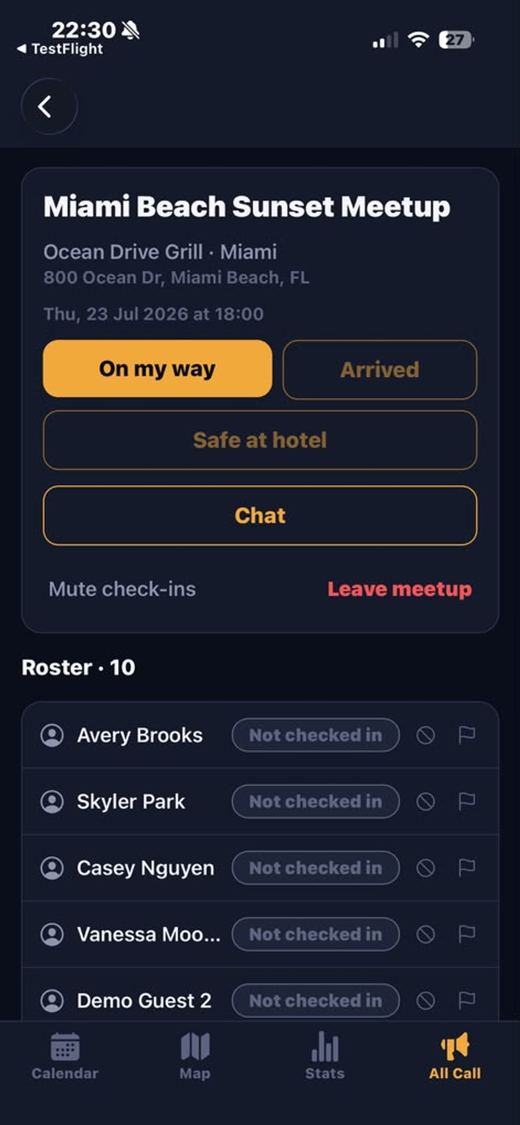
- Open Meetups and tap + New Meetup.
- Add a title, city, restaurant, and date/time.
- Choose Open (any verified crew nearby can find it) or Private (share the code or QR only with people you invite).
- Inside a meetup, use Chat to talk with the group — long-press any message to react, or tap the poll icon to put something to a vote (like which restaurant to actually pick).
Crew Badge
A proper ID-card look for your profile — name, airline, and a running tally of meetups you've actually shown up to.
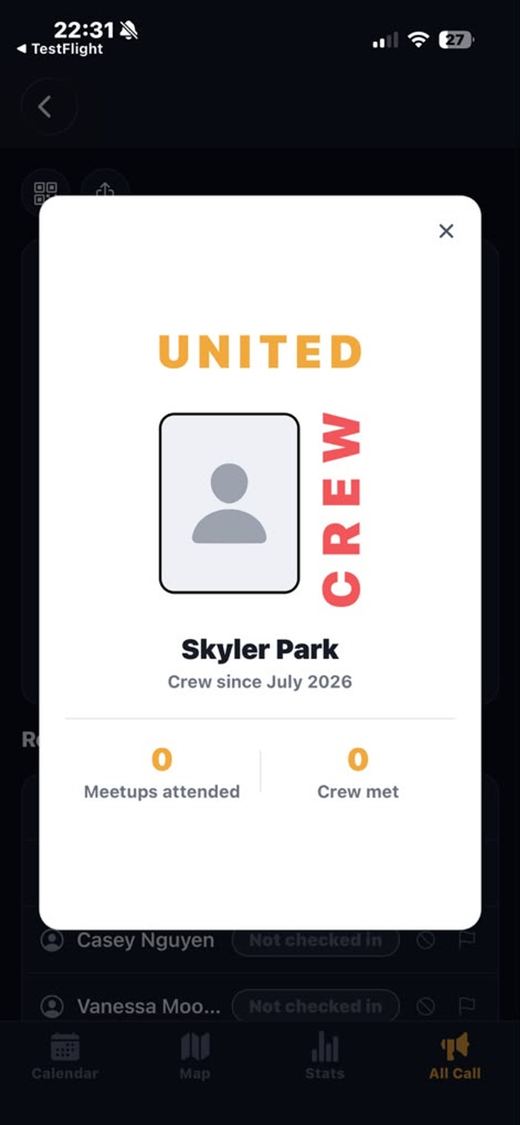
- Open Settings → Profile & badge to view your Crew Badge any time.
- Tap the QR icon on your own badge to show a scannable code — a friend can scan it to add you instantly.
Meetup photos
Photos only leave the app for social media once every single person in them says yes — silence never counts as a yes.
- Inside a meetup, open the Photos section and tap + to add one — use your phone's native camera (filters and all) or pick one from your library.
- Everyone tagged in the photo gets asked to approve it before it's marked ready to share. One no kills it, permanently.
- Regardless of approval status, anyone can download any meetup photo straight to their own phone, any time — that part doesn't require anyone else's say-so.
Restaurant bookmarks
Save the places worth going back to — with a photo and a note on what to order.
- Open Settings → Restaurant bookmarks and tap + to add a place, with an optional photo and notes (what you had, what to get next time).
- Next time you create a meetup or All Call at that same spot, your old notes pop up automatically as a reminder.
Block & report
Your own no-fly list. One tap, and someone is grounded from your airspace for good.
- Open the person's profile and tap the ⋯ menu.
- Choose Block to stop seeing each other immediately (both directions), or Report to flag them for review.
Notifications
Choose exactly which alerts are worth interrupting your day for.
- Open Settings → Notifications.
- Toggle individual alerts on or off — touchdown alerts, meetup activity, All Call posts, and more.
Screenshots marked "coming soon" above will be filled in — and short video clips added — from the admin portal as they're produced. This page updates in place, no app update required.